Jun 5, 2026
6 min read
Figma Dev Mode isn't a handoff tool. It's a conversation starter.
What both designers and developers get wrong about Dev Mode, and how shifting the way you think about it makes collaboration actually work.

When Figma launched Dev Mode, a lot of teams exhaled. Finally, a dedicated space for developers to inspect designs without accidentally moving a component. A clean separation. Handoff, solved.
Except it didn't solve handoff. It made the gap more visible.
I've been using Dev Mode across multiple products and teams, and the biggest shift in how I think about it isn't technical. It's this: Dev Mode gives you access to the artifact. It doesn't give you access to the decisions behind it. Those live somewhere else entirely.
Dev Mode is one of the best tools Figma has shipped. But it only works if both sides know what it's for, and what it isn't.
First, who is this for?
Dev Mode isn't just for developers, even though the name implies it. It's designed to benefit anyone who touches the space between a design file and a working product: developers building the UI, QA checking it against spec, product managers validating what shipped, and designers reviewing their own work.
If you've ever been given a Figma link and had no idea what to do with it, this is for you. If you've ever sent a Figma link and received the response, "Which frame are you pointing me to?", it's also for you.
What Dev Mode actually is
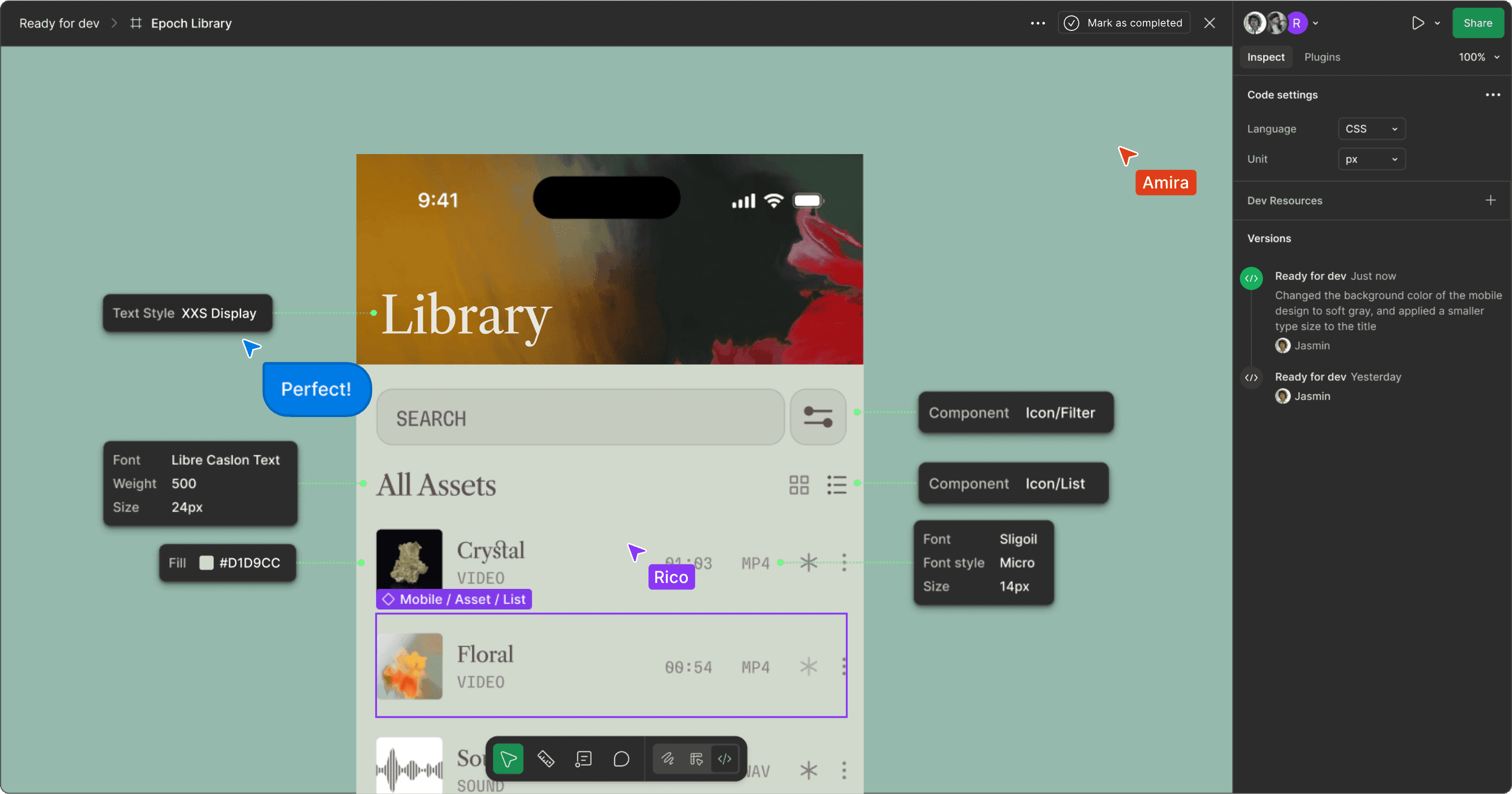
Dev Mode is a separate workspace inside Figma. You enter it by clicking the toggle button in the bottom toolbar, or pressing Shift + D. When the toggle turns green, you're in.
Once you're in, a few things change. The toolbar at the bottom switches to Dev Mode tools. The right-side panel becomes the Inspect panel. And critically, you can't accidentally edit the design. You're in read-only mode, which is exactly where developers should be.
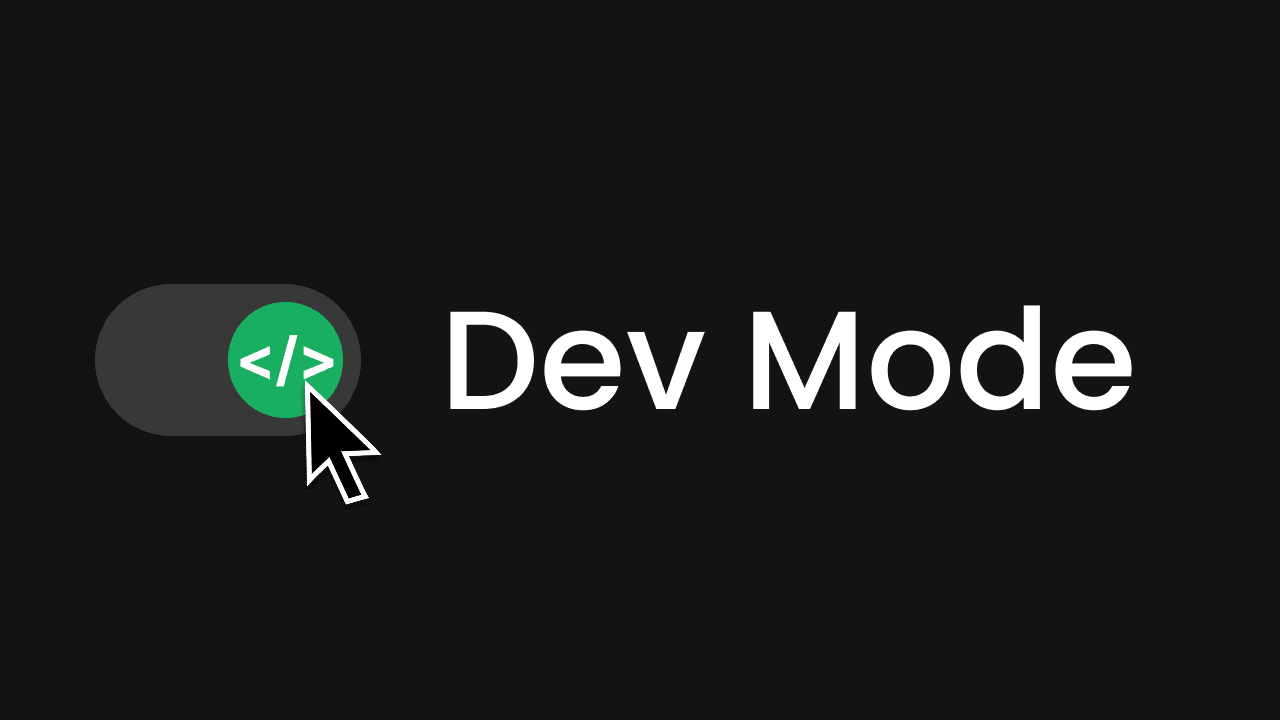
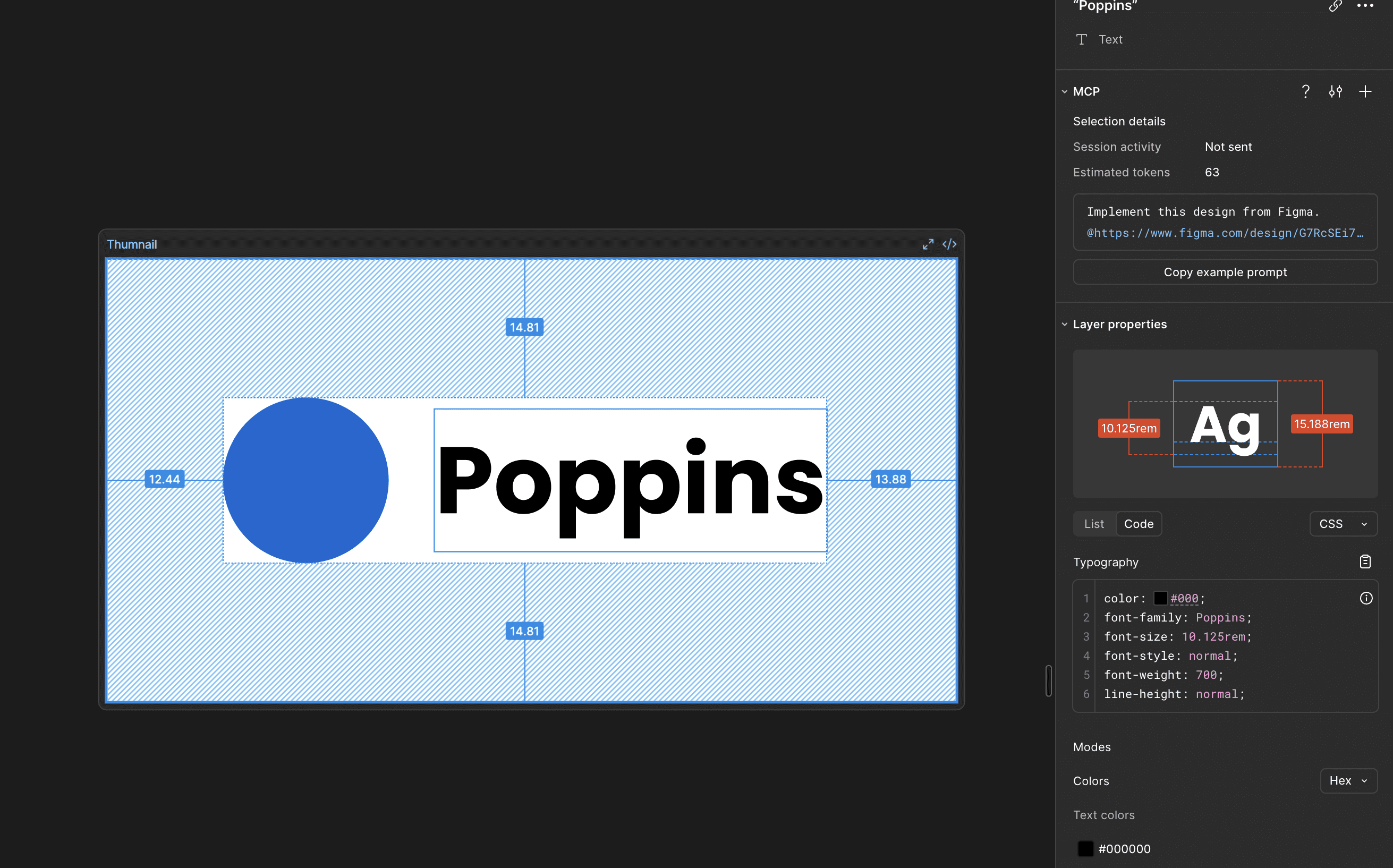
The inspection panel on the right is where most of the useful information lives. Select any element in the design, and it surfaces spacing, padding, color values, typography styles, and code snippets in your language of choice. CSS, iOS, Android. You can switch between them depending on what you're building.
You can also copy measurements by clicking the spec numbers directly, or grab code by hitting the clipboard icon. It's faster than it sounds once you're used to it.
The features worth actually using
Dev Mode has a lot going on. Here are the ones that matter most in day-to-day work.
The measure tool lets you set persistent markers between elements. Unlike hovering to eyeball distances, these stay on screen so you can reference spacing across a design without losing your place. Useful when you're trying to understand the relationship between components in a complex layout.
Annotations are underrated. Designers can leave Dev Mode-specific notes that only appear in Dev Mode, without cluttering the design view. Developers can also add their own annotations with extra context, implementation notes, or questions. This is where a lot of the real handoff conversation should happen, and often doesn't.
Versioning lets you see the change history of any frame or element. Select a frame, click "Compare changes" at the top of the inspect panel, and a window opens showing every iteration. This is particularly useful for developers picking up a ticket weeks after the design was originally created.
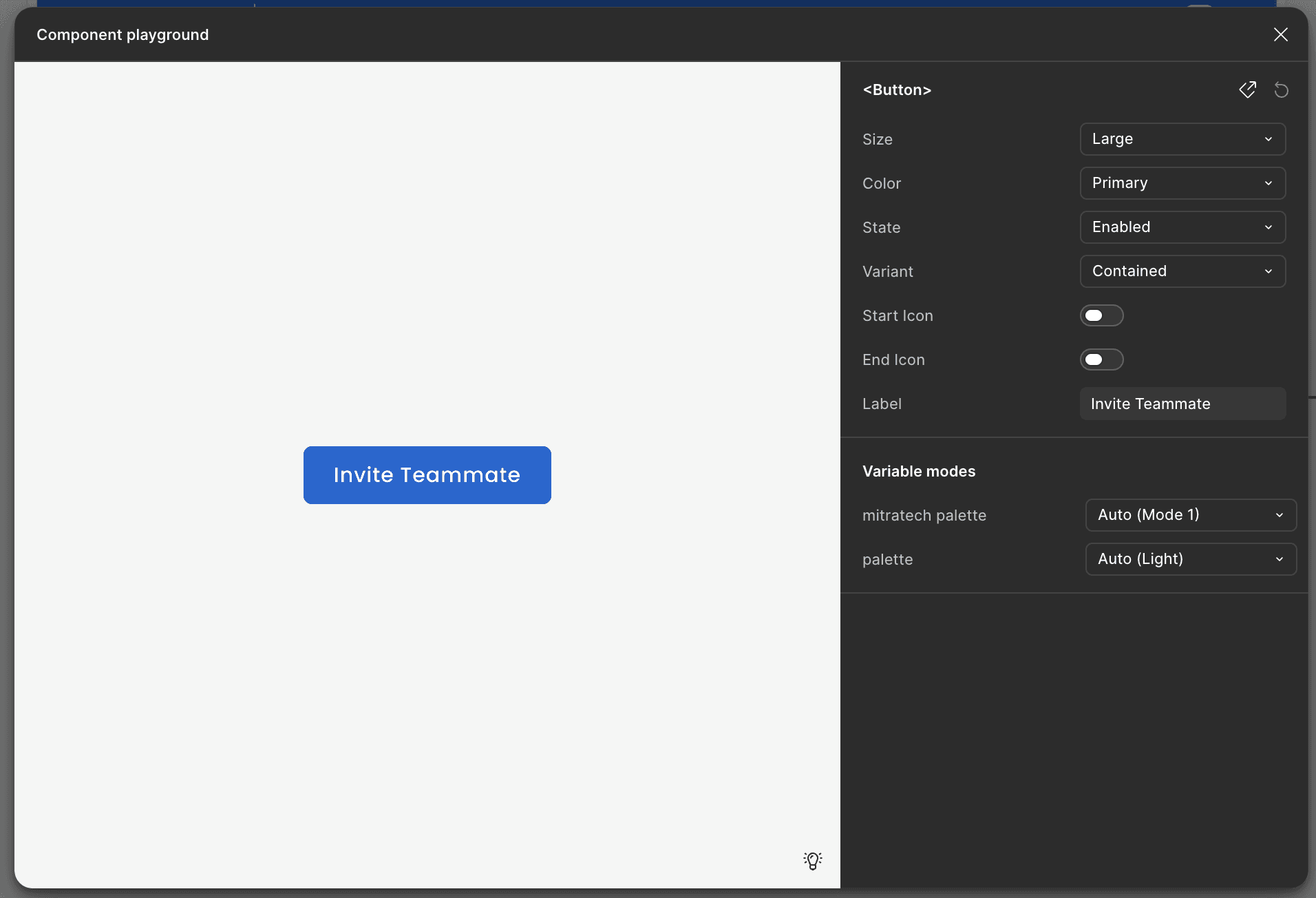
Component playground is one of the more powerful and overlooked features. Select a component and open it in playground mode, and you can toggle through every variant and property without touching the actual design. It's the fastest way for a developer to understand the full range of states a component can be in.
Ready for dev is the closest Dev Mode gets to a formal handoff signal. Designers can mark sections as ready for development, which alerts developers and logs the status. Any changes made after that point get documented in a change log. It's not a finish line, but it's a useful flag.
What Dev Mode doesn't solve
This is the part nobody talks about in the "here's how to use Dev Mode" tutorials.
It can't convey interaction logic. A static frame can show you what a modal looks like. It can't show you how it opens, what triggers it, whether it traps focus, or what happens on mobile. Complex interactions still need a conversation or a prototype walkthrough, not just an inspect panel.
The generated code is a starting point, not a solution. The CSS snippets are useful as reference, but they're based on what Figma thinks you need, not what your actual codebase looks like. Don't paste it directly. Read it, understand it, and write your own.
The most useful question a developer can ask after opening a file in Dev Mode: "Is there anything I'm going to need in here that isn't here?" That one question surfaces more gaps than an hour of inspecting.
It doesn't replace alignment calls. Even a perfectly annotated file still needs a sync when the feature is complex, the design is new, or the team hasn't worked together before. Dev Mode reduces the number of back-and-forths. It doesn't eliminate them.
Integrations worth knowing about
Dev Mode connects to tools your team is probably already using.
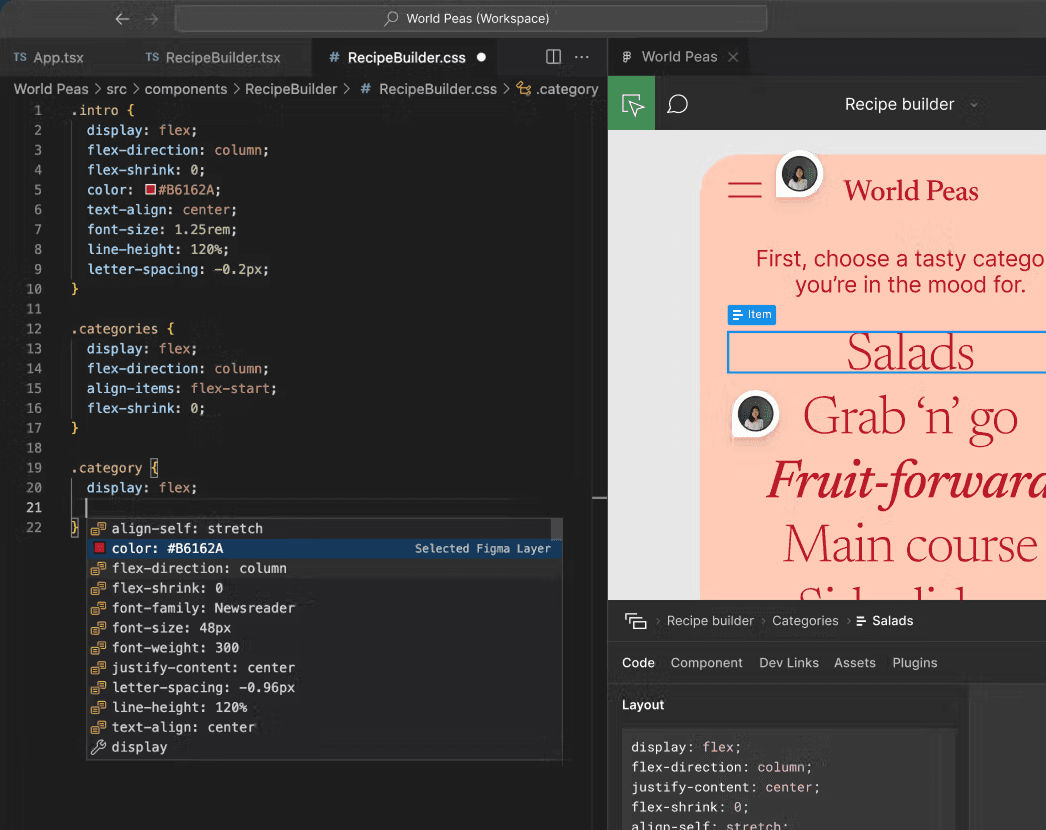
VS Code integration lets you inspect design files directly inside your IDE without switching contexts. Install the Figma extension for VS Code, and you can view and inspect designs alongside your code. Useful when you're deep in a build and don't want to context-switch to a browser tab.
Code Connect is more advanced. It lets you pull your actual design system code into Figma so the inspect panel shows your real component code instead of Figma's auto-generated snippets. It requires owning the code for your design system, so it's not for every team, but if your team maintains a component library, it's worth looking into.
There are also plugins worth flagging: Anima and Figma to Code both convert Figma layouts into HTML, Tailwind, Flutter, or SwiftUI. Again, treat the output as a starting scaffold, not production-ready code.
A quick guide for each side
The way you use Dev Mode should depend on which side of the handoff you're on. Here's a practical starting point for each.
For designers
Include error, empty, and loading states in your file
Name your layers like a developer will search them
Use Dev Mode annotations for anything the inspect panel won't explain
Mark sections "Ready for dev" only when they're actually ready
Do a quick file walk-through with the dev before they start building
For developers
Check component names against your design system before building
Use the playground to explore all states before writing a line of code
Treat CSS output as reference, not paste-ready code
Flag missing states early, not after you've built the happy path
Add your own annotations when you need to document implementation notes
The takeaway
Dev Mode is one of the best tools in the design-to-build workflow. But it works best when both sides use it as a shared starting point, not a way to avoid talking to each other. Open it together at least once. You'll spot gaps in ten minutes that would have taken days to discover in code review.
Be the first to know about every new letter.
Stay ahead in the world of web design with expert insights, industry trends, and practical tips.
No spam, unsubscribe anytime.